
Having a valid Windows 10 license not only ensures that your operating system runs stably and securely but also unlocks its full potential. Given that Microsoft will end support for Windows 10 on October 14, 2025, verifying and activating your license correctly—along with understanding what “permanent” means in this context—is more essential than ever. This article will provide detailed, easy-to-understand guidance on how to check your activation status, legitimate activation methods, and important information about the benefits, risks, and future roadmap of Windows 10—helping you prepare as best as possible for this critical milestone.
Introduction to Windows 10 Licensing and Its Importance
Windows 10, with billions of devices in use worldwide, remains one of Microsoft’s most popular operating systems. To take full advantage of its features, ensure data security, and receive full support, activating your Windows 10 license is essential. Activating Windows, also known as "Active Windows," is the process of verifying that the copy of Windows on your device is genuine and properly licensed. This process typically involves entering a product key or linking to a digital license.
Many users often have questions about the concept of “permanent” when it comes to Windows licensing. In this context, “permanent” is generally understood to mean a license that remains valid for the entire lifespan of the device on which it is installed, or until Microsoft officially discontinues support for that version of Windows. This does not mean that the license will exist indefinitely on any device without any conditions. For example, an OEM (Original Equipment Manufacturer) license is typically tied to the computer’s original hardware and cannot be transferred. With Microsoft set to end support for Windows 10 on October 14, 2025, the concept of “permanent” needs to be better understood within the context of this support timeframe. Therefore, clearly understanding the type of license you hold is crucial for effective license management and preparing for the future.
How to Check the Windows 10 License Status
Before proceeding with activation, the first thing you need to do is check whether the copy of Windows 10 on your computer is already activated. There are two main ways to do this:
1. Check the activation status in Settings
This is the simplest and most common way to check the Windows 10 license status. You can follow these steps:
- Step 1: Click the button Start (Windows icon) in the lower-left corner of the screen, then select the icon Settings (gear icon).
- Step 2: In the Settings window, Select the "Update & Security" section.
- Step 3: On the left-hand menu bar, Select Activation.

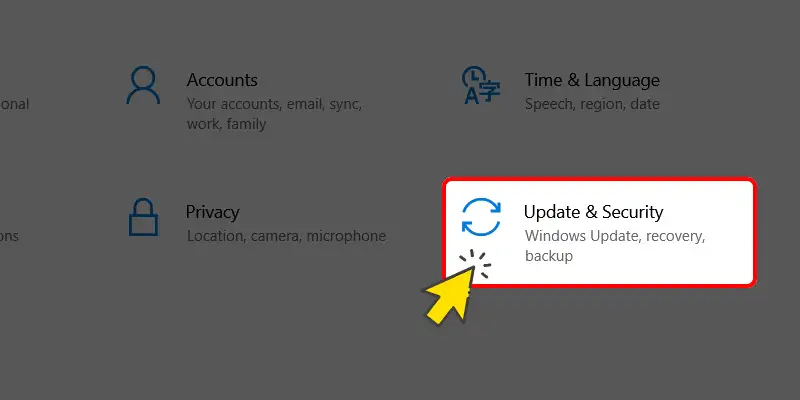
Select the Settings icon from the Start menu to begin the check.

Here, you'll see the activation status of Windows 10:
- If displayed “Windows is activated with a digital license linked to your Microsoft account” or “Windows is activated using your organization’s activation service” (for business computers), this means that your copy of Windows is validly activated.
- If displayed “Windows is not activated” or you see the text “Activate Windows – Go to Settings to activate Windows” If you see this in the lower-right corner of your desktop screen, your copy of Windows is not activated.
2. Check the activation status using Command Prompt (CMD)
For more experienced users or those who want to view detailed license information, you can use Command Prompt (CMD) with the following commands:
- Step 1: Press the Windows + R key combination to open the Run dialog box, type `cmd`, and press Ctrl + Shift + Enter to open Command Prompt with administrator privileges. Alternatively, you can search for “cmd” in the Start Menu, right-click “Command Prompt,” and select “Run as administrator.”.
- Step 2: In the Command Prompt window, type the following command and press Enter:
`slmgr /xpr`
This command will display a dialog box indicating whether your copy of Windows is permanently activated or has a limited activation period. If it displays “The machine is permanently activated” or “The machine is activated,” it means your license is activated. - Step 3: To view more detailed information about the license, including the license type, a portion of the product key, and the activation period, you can enter the following command:
`slmgr /dlv`
This command provides a more detailed view of the system's status and licensing information.
Common Types of Windows 10 Licenses
To better understand Windows licensing, it is important to be familiar with the different types of licenses that Microsoft offers. Each type has its own characteristics and terms of use:
- OEM (Original Equipment Manufacturer) License:This is the most common type of license, typically pre-installed on new computers purchased from manufacturers such as Dell, HP, Lenovo, Asus, etc. An OEM license is tied to the computer’s hardware (specifically the motherboard) and cannot be transferred to another computer. If you replace the motherboard, your OEM license may no longer be valid, and you will need to purchase a new license.
- Retail License:Retail licenses can be purchased individually from the Microsoft Store online or from authorized retailers. A key feature of this type of license is its transferability. You can uninstall Windows 10 from one computer and reinstall it on another, as long as it is installed and activated on only one computer at a time. This is a flexible option for people who frequently upgrade or change computers.
- Volume Licensing:This type of license is intended for organizations, businesses, schools, or government agencies that purchase licenses in bulk for deployment on multiple computers. Volume licenses are typically managed through an on-premises activation server (KMS) or a cloud-based service.
- Digital License:A digital license is a modern activation method in Windows 10 and Windows 11 that does not require users to enter a product key in the traditional way. Instead, it is linked to the device’s hardware and the user’s Microsoft account. This is a convenient activation method, especially when you need to reinstall Windows or upgrade your hardware.
You can obtain a Digital License in the following ways:
- Free upgrade from an eligible version of Windows (Windows 7/8/8.1) to Windows 10. Although the official free upgrade program ended in 2016, in practice, many users were still able to activate their copies this way until recently. However, Microsoft recommends purchasing a new license if you do not already have one.
- Purchase a genuine copy of Windows 10 from the Microsoft Store or an authorized retailer.
- Purchase a new device that comes pre-installed with Windows 10 (the OEM license is typically converted to a digital license on that device).
Guide to Permanently Activating Windows 10
Activating Windows 10 is an important step to ensure you can use the operating system fully and legally. Here are the main activation methods:
1. Activate with a Product Key
A product key is a 25-character alphanumeric string used to activate your copy of Windows. If you have purchased a product key, follow these steps:
- Step 1: Click the Start button (the Windows icon), then select the Settings icon.
- Step 2: In the Settings window, select "Update & Security.".
- Step 3: On the left-hand menu bar, select "Activation.".
- Step 4: Under “Update product key,” select “Change product key.”.
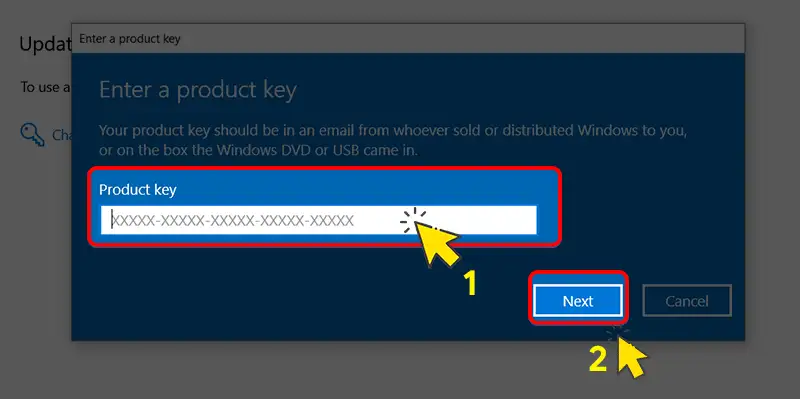
- Step 5: In the “Enter a product key” dialog box, enter your product key in the blank field and click Next. The system will then verify and activate Windows 10 for you.
In the Settings window, select "Update & Security" to continue.

Where to Buy Genuine Windows 10 Product Keys
To ensure legality and security, you should purchase a genuine Windows 10 product key from reliable sources:
- Microsoft Online Store: This is the most direct and reliable source. You can visit the Microsoft website to purchase a digital license or a product key.
- Authorized retailers: Major electronics stores and reputable software retailers such as FPT Shop, The Gioi Di Dong, and CellphoneS in Vietnam (or Amazon and Best Buy internationally) are also safe options. Be extremely cautious with online sources offering keys at unusually low prices, as they may be pirated, invalid, or even contain malware, posing serious security and legal risks.
2. Activate with a Digital License
A digital license is a convenient activation method, especially since you don't need to enter a product key. If your Windows 10 was previously activated with a digital license, it will automatically reactivate when you reinstall Windows on the same device and connect to the internet.
The Importance of Linking Your Digital License to Your Microsoft Account
Linking your Digital License to your Microsoft account is extremely important. It makes it easy to reactivate Windows 10 after a major hardware change (such as replacing the motherboard) without having to contact Microsoft Support. Once the license is linked, Microsoft will recognize that your device is licensed, and you’ll simply need to sign in with that Microsoft account to reactivate it.
How to Reactivate After a Hardware Change
If you've made major hardware changes and Windows 10 is no longer activated, follow these steps:
- Step 1: Click the Start button (the Windows icon), then select the Settings icon.
- Step 2: In the Settings window, select "Update & Security.".
- Step 3: On the left-hand menu bar, select "Activation.".
- Step 4: Click the Troubleshoot button.
- Step 5: The Windows Activation window appears; select "I recently changed hardware on this device.".
- Step 6: Sign in to the Microsoft account you previously linked to the digital license. The system will display a list of linked devices; select your current device and proceed with reactivation.
Next, select "Update & Security" in the Settings window.
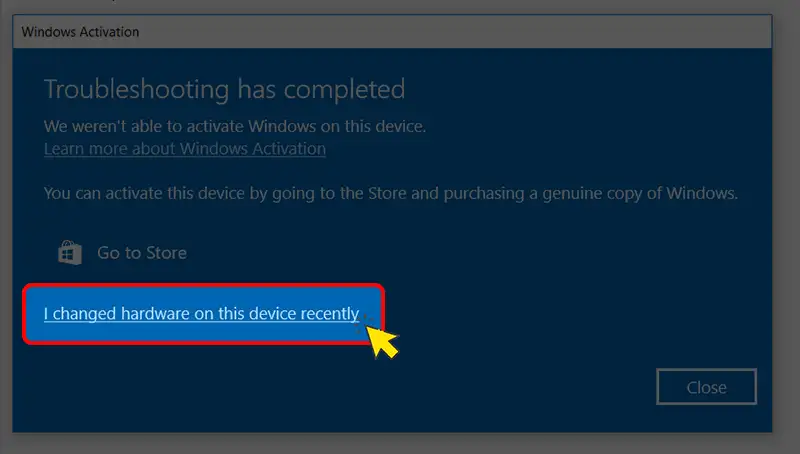
Note: If you haven't linked your digital license to your Microsoft account before changing your hardware, this method may not work. In that case, you should contact Microsoft Support for further assistance.
The Benefits of Using a Genuine Copy of Windows 10
Using a genuine copy of Windows 10 offers many significant benefits, ensuring the best user experience and protecting your system:
- Get all the latest security updates and new features:Microsoft prioritizes providing critical security patches for genuine Windows, helping to protect your computer from online threats such as viruses, ransomware, and malware. In addition, you’ll receive updates with new features, performance improvements, and an enhanced user experience.
- Officially supported by Microsoft:If you encounter a problem, licensed users have access to Microsoft’s technical support services via phone, online chat, or the official forum. This ensures you receive professional and reliable assistance when you need it.
- Experience a stable operating system with no feature limitations:A genuine copy of Windows lets you enjoy all the features of the operating system without any restrictions. You can customize the interface (change the wallpaper, theme, and colors), use all the options in Settings, and avoid the annoying “Activate Windows” watermark on your screen.
- Seamless synchronization with your Microsoft account:With a genuine copy of Windows, you can easily sign in and sync your data, as well as install the operating system on multiple Windows devices using your Microsoft account. Features such as OneDrive Sync, Windows Hello, and the Microsoft Store all work reliably.
- Avoid legal risks related to copyright infringement:For individuals, the use of pirated software may not result in immediate legal action, but for organizations and businesses, software copyright infringement can lead to serious legal consequences, including fines and damage to their reputation.
Risks of Using Unlicensed or Illegally Activated Windows 10
Although using unlicensed Windows may seem “cost-effective” at first, the potential risks it poses can cause much greater damage in the long run:
- Lack of security updates makes it vulnerable to attacks:This is the biggest risk. Unlicensed Windows systems typically do not receive critical security updates from Microsoft. This makes your system an easy target for viruses, malware, ransomware, and other cyberattacks, leading to data loss, exposure of personal information, or even system failure.
- Limited features and poor performance:Unactivated Windows will have many features restricted, particularly the ability to personalize the interface. In addition, unauthorized activation tools (cracks, unofficial KMS tools) often interfere deeply with the system, which can cause software conflicts, reduce performance, slow down the computer, cause it to freeze, or even lead to serious system errors.
- The risk of pirated software containing malicious code:Many unauthorized Windows activation tools circulating on the internet often come bundled with viruses, Trojans, or spyware. When you use these tools, you are voluntarily installing malware on your computer, opening the door for cybercriminals to access your data or take control of your device.
- Legal Risks:Software copyright infringement is an illegal act. Although Microsoft generally does not take legal action against individuals using pirated versions of Windows, for businesses and organizations, the use of unlicensed software can lead to audits, heavy fines, and serious damage to their reputation.
- Technical support is not available:If you encounter a problem, you won't receive any official support from Microsoft, which makes troubleshooting more difficult and time-consuming.
Important Information About Windows 10 and the Future
To help users gain a comprehensive understanding and make informed decisions, here is the latest information on Windows 10 and Microsoft’s development roadmap:
- End of official support for Windows 10:Microsoft has announced that it will end support for Windows 10 on **October 14, 2025**. After this date, devices running Windows 10 will no longer receive security updates, non-security patches, or free technical support. This means your system will be vulnerable to attacks exploiting newly discovered security vulnerabilities. Business users or anyone who wishes to continue receiving security updates after this date can enroll in the paid Extended Security Updates (ESU) program, which extends support for an additional 3 years.
- Eligibility for a free upgrade to Windows 11:The good news is that Microsoft is still offering a free upgrade from Windows 10 to Windows 11 for devices that meet the minimum system requirements. This upgrade not only lets you experience the new interface and features of Windows 11 but also ensures you receive long-term security support from Microsoft. The minimum system requirements for Windows 11 include a compatible CPU, 4GB of RAM, 64GB of storage, UEFI firmware with Secure Boot, and, most importantly, TPM 2.0. You can use Microsoft’s PC Health Check app to verify whether your computer is eligible for the upgrade.
If you're considering installing a new copy of Windows, check out our detailed how-to articles on Install Windows 10/11 using the standard WinNT Setup for UEFI/GPT or Create a Windows installation USB drive using Rufus to ensure the process goes smoothly.
Troubleshooting Common Windows 10 Activation Errors
During the Windows 10 activation process, users may occasionally encounter certain errors. Below are some common errors and how to resolve them:
- Error: The product key is invalid or has already been used:If you receive an "Invalid Product Key" message, double-check that you have entered all 25 characters correctly. Make sure there are no typos or confusion between similar characters, such as O and 0, or I and 1. If the Product Key has been used on another computer—especially with a Retail license—you must deactivate it on the old computer before using it on the new one. For an OEM Product Key, it is valid only on the original hardware.
- Error: Unable to connect to the Microsoft activation server:This error is usually caused by an internet connection issue or a firewall problem. Make sure your computer has a stable internet connection. Temporarily disable the firewall (Windows Defender Firewall) or third-party antivirus software to see if that resolves the issue. Then, try the activation process again. If it still doesn’t work, Microsoft’s activation servers may be experiencing a temporary issue; please try again in a few hours.
- Activation error after a major hardware change:As mentioned, replacing the motherboard or certain other key hardware components may cause Windows 10 to become deactivated, especially with an OEM license or a Digital License that is not linked to a Microsoft account. If you have linked your Digital License to a Microsoft account, use the activation troubleshooter as described in the section “How to reactivate after changing hardware.” Otherwise, you’ll need to contact Microsoft Support directly for assistance and provide proof of purchase, if available.
- Use the built-in Windows activation troubleshooter:Windows 10 has a built-in troubleshooter that can help you resolve activation issues. You can access it by going to **Settings > Update & Security > Activation**, then selecting **Troubleshoot**. The troubleshooter will automatically scan and suggest a solution for your activation issue.
Understanding the different types of licenses and how to troubleshoot errors will help you maintain your Windows 10 license status easily and effectively.
We hope this article has provided you with comprehensive and useful information on how to check your license status and activate a genuine copy of Windows 10, as well as the associated benefits and risks. Using a licensed version of Windows not only ensures the stability and security of your system but also guarantees that you’ll always receive the best support from Microsoft. Don’t forget to check the Windows 10 end-of-support date—October 14, 2025—and consider upgrading to Windows 11 for a better experience in the future.
Frequently Asked Questions About Windows 10 Licensing and Activation
How can I tell if my Windows 10 is permanently activated?
You can check by going to Settings > Update & Security > Activation. If you see the message “Windows is activated with a digital license” or “Windows is activated using your organization’s activation service,” that means Windows is activated. To determine whether it’s “permanent” (for the device’s lifecycle or Microsoft’s support period), you can use the `slmgr /xpr` command in Command Prompt (Admin).
What is a digital license, and how do you get one?
A digital license is a method of activating Windows 10/11 without a product key; it is linked to your device's hardware and your Microsoft account. You can obtain it by upgrading for free from Windows 7/8/8.1, purchasing Windows 10 from the Microsoft Store, or buying a new computer with Windows preinstalled (OEM).
Can I upgrade to Windows 11 for free from Windows 10?
Yes, Microsoft still offers a free upgrade from Windows 10 to Windows 11 for devices that meet the minimum system requirements (including TPM 2.0, Secure Boot, and 4 GB of RAM). You can use the PC Health Check app to check your computer's compatibility.
When will support for Windows 10 end?
Microsoft will officially end support for Windows 10 on October 14, 2025. After this date, devices running Windows 10 will no longer receive free security updates and technical support, unless they enroll in the paid Extended Security Updates (ESU) program.
Where should I buy a genuine Windows 10 product key?
To ensure safety and legality, you should purchase a genuine Windows 10 product key from the Microsoft Store online or from large, reputable authorized retailers such as FPT Shop, The Gioi Di Dong, and CellphoneS. Avoid purchasing keys from unverified sources or those offered at prices that are unusually low.