
Does your Windows computer start up slowly and run sluggishly after a while? The most common cause is usually that too many applications run automatically at the same time when the operating system starts up. Managing and disabling these unnecessary applications not only speeds up startup but also significantly improves your computer’s overall performance, from Windows 10 to Windows 11.
The Significant Benefits of Managing Apps That Launch with Windows
Strictly controlling which applications automatically launch with the operating system offers many practical benefits and helps optimize your computer experience:
- Speed up system startup: This is the most obvious benefit. When fewer apps need to load at the same time, Windows can start up significantly faster. Tests show that disabling unnecessary apps can reduce Windows startup time by anywhere from a few seconds to tens of seconds, depending on the number and resource-intensity of the disabled apps.
- Improve overall performance: Apps running in the background consume CPU and RAM resources. By reducing the number of these apps, you free up valuable resources, helping your computer run more smoothly and respond more quickly when you open other apps or perform resource-intensive tasks.
- Laptop Battery Saving Tips: For laptop users, this is a benefit that shouldn’t be overlooked. Fewer apps running in the background means the CPU and other components have to work less, thereby reducing power consumption. In some cases, effective management of startup applications can extend battery life by 10% to 20% during light to moderate tasks.
- Reducing the load on the hard drive: Especially with traditional HDDs, reading and loading multiple applications at once during startup can put a significant strain on the drive. Reducing the number of applications helps minimize access time to the hard drive, thereby extending the device’s lifespan.
- Enhancing security: Some malware or unwanted software may configure itself to start with Windows. Checking for and disabling unfamiliar startup items helps you detect and remove potential threats, providing better protection for your system.
Which apps should you disable at Windows startup, and which ones shouldn't you disable?
The decision about which apps to disable should be made with careful consideration. Disabling all startup apps is a mistake, as some software and services are essential for the system’s stable and secure operation. Here’s a guide to help you make smart choices:
Apps you should consider turning off:
- Messaging and social media apps: Apps like Discord, Spotify, Steam, Zalo, and Microsoft Teams (if you don't need them to run immediately at startup) often consume a significant amount of system resources. You can open them manually when needed.
- Automatic software updates: Many applications, such as Adobe Creative Cloud, Google Chrome Updater, or driver managers, often have update processes running in the background. You can disable them and check for updates manually on a regular basis.
- Features not used very often: Optimization tools, screen recording software, or auxiliary apps that you only use occasionally.
- Microsoft apps are not necessary: Even some Microsoft apps, such as OneDrive (if you don’t use continuous sync) or Microsoft Teams (if it’s not your primary work tool), can be removed from the startup list to improve performance without affecting the operating system’s core functionality.
Apps that should not be turned off or require careful consideration:
- Antivirus and security software: These are critical applications that need to run as soon as Windows starts up to protect your computer from threats. However, many modern antivirus programs, such as Bitdefender, Norton, and Kaspersky, have built-in “Game Mode” or “Silent Mode” features that automatically minimize the impact on performance when you’re gaming or using resource-intensive applications, helping you stay secure while optimizing performance.
- Device driver: Drivers for graphics cards (NVIDIA, AMD), sound cards, or other peripheral devices are necessary for the hardware to function properly.
- Critical System Services: Some Windows services or critical software services (such as those related to networking and audio) are essential for the basic operation of the computer.
- Automatic backup app: If you rely on these apps to protect your data, set them to start with Windows.
Important Note: “Disabling” a startup application only prevents it from running automatically when Windows starts; the application remains on the system, and you can open it manually at any time. This is different from “Uninstall,” which completely removes the app from your computer.
The Most Effective Methods for Managing Applications That Start With Windows
1. Use Settings – Simple and intuitive
This is the most user-friendly method, and it’s particularly well-suited for general users on both Windows 10 and Windows 11.
On Windows 10:
Step 1: Open the Settings app by pressing the Windows + I key combination, or click the Start icon and select the gear icon.

Step 2: Select an item Apps.
Step 3: In the left-hand menu, select Startup.
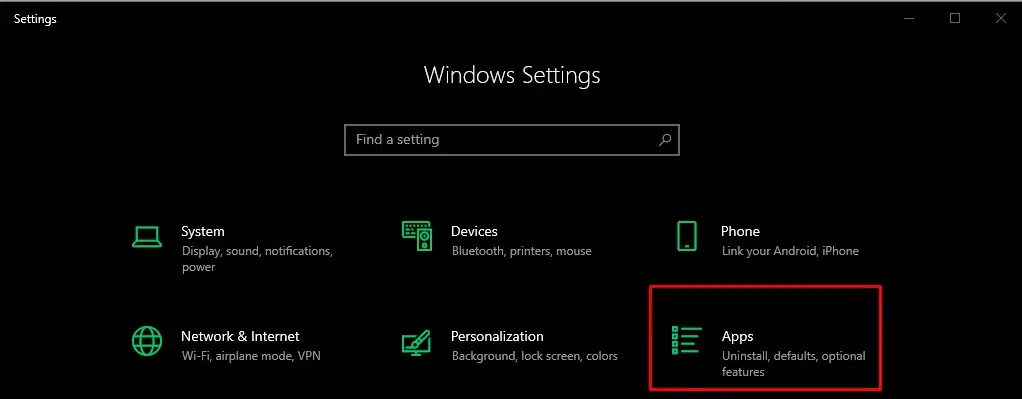
Step 4: Here, you'll see a list of apps configured to start with Windows. Toggle the switch to the Off for any app you don’t want to start automatically. Windows 10 also displays the “Startup impact” rating, which helps you easily identify which apps have the greatest impact on startup time.
On Windows 11:
Windows 11 has a similar interface for managing startup apps, but it is more deeply integrated into Settings, with an improved and more accessible interface.
Step 1: Open the Settings app by pressing the Windows + I key combination.
Step 2: Select an item Apps from the menu on the left.
Step 3: Click Startup.
Step 4: Just like in Windows 10, you'll see a list of apps along with their “Startup Impact.” Toggle the switch to Off for non-essential applications.
2. Management via Task Manager – Comprehensive and Powerful
Task Manager is the most comprehensive tool for managing startup applications, providing both an overview and detailed information about all applications and services configured to start with Windows, including their impact on startup time.
Step 1: Open Task Manager using one of the following methods:
- Press the Ctrl + Shift + Esc key combination.
- Right-click anywhere on the Taskbar and select Task Manager.
- Press the Ctrl + Alt + Del key combination and select Task Manager.
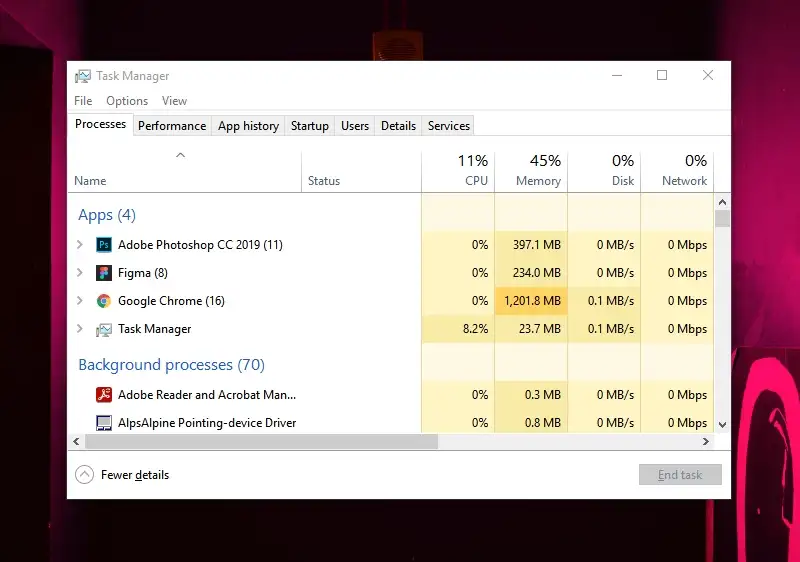
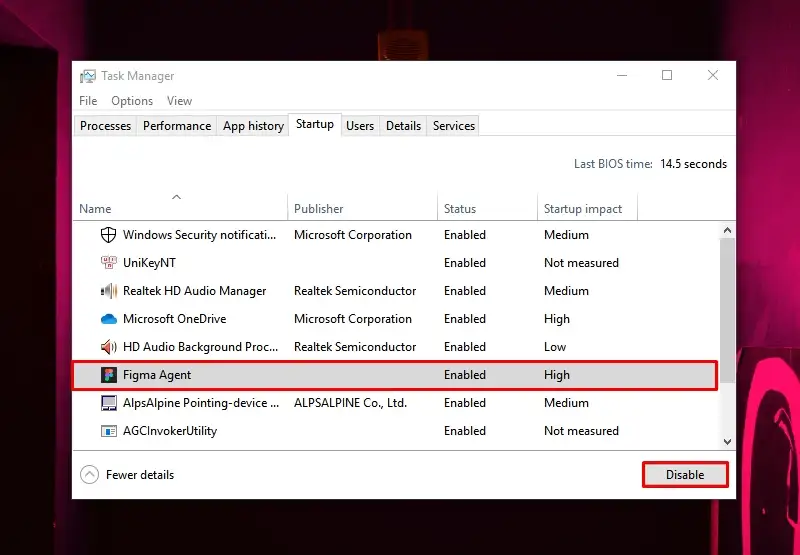
Step 2: In the Task Manager window, select the tab Startup.

Step 3: You'll see a list of apps, developers, statuses (On/Off), and, most importantly, the column Startup Impact. This column shows the extent to which an app affects system startup time (e.g., High, Medium, Low, Not Measured). This helps you make better decisions about which apps to disable.
Step 4: Right-click the app you want to disable and select Disable. To turn it back on, select Enable.
3. Check the Startup Folder
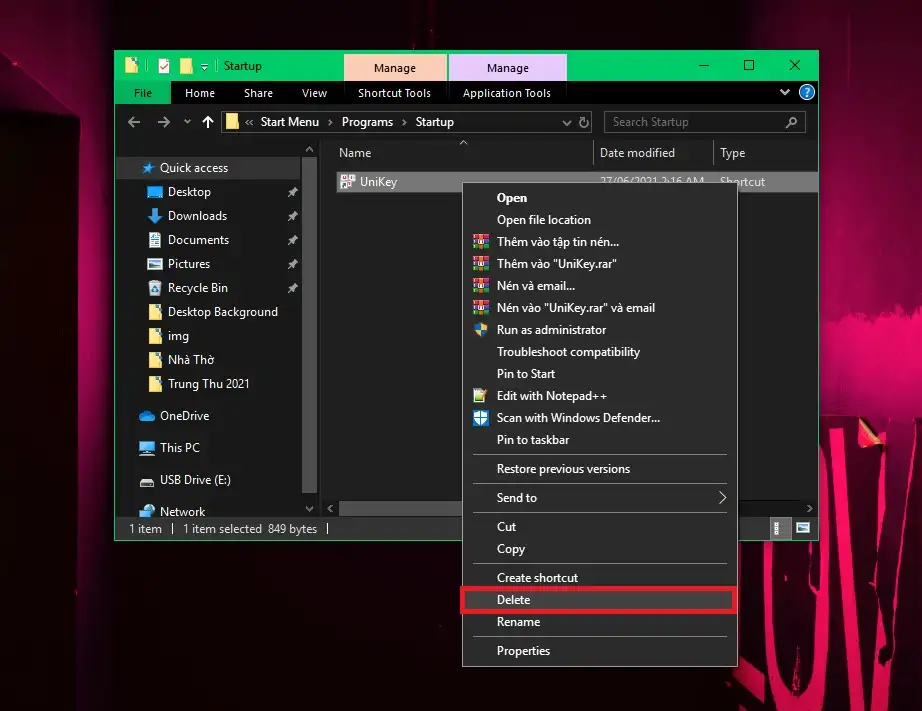
Some applications start automatically by placing a shortcut in the Windows Startup folder. You can manage them directly from here.
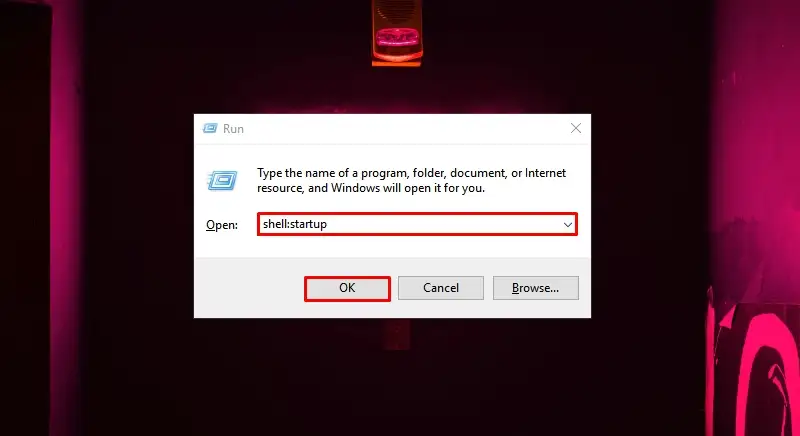
Step 1: Open the Run dialog box by pressing the Windows + R key combination.

Step 2: Type "shell:startup" in the "Open" box and press Enter, or select OK. This action will open the startup folder specific to your current user.
Step 3: To check the startup folder shared by all users on the computer, you can type shell:common startup into the Run dialog box. (Note: You need administrator privileges to edit this folder.).
Step 4: In the Startup folder window, you'll see application shortcuts. Right-click the shortcut for the application you want to stop from starting with Windows, and select Delete.
4. Tweaking via System Configuration (MSConfig) – Use with caution
The System Configuration tool, also known as MSConfig, allows you to manage services and startup items. However, disabling non-Microsoft services without fully understanding their functions can lead to system instability, software errors, or hardware malfunctions. Therefore, please exercise extreme caution when using this method.
Step 1: Open the Run dialog box by pressing the Windows + R key combination.
Step 2: Type "msconfig" in the "Open" box and press Enter, or select OK.
Step 3: In the System Configuration window, go to the tab Services.

Step 4: To avoid disabling important operating system services, please Check the "Hide all Microsoft services" box. Next, you'll see a list of third-party services. Review them carefully and uncheck the ones you're certain you don't need. If you're unsure, it's best not to disable them.
Step 5: Click Apply and then OK. The system may prompt you to restart your computer to apply the changes.
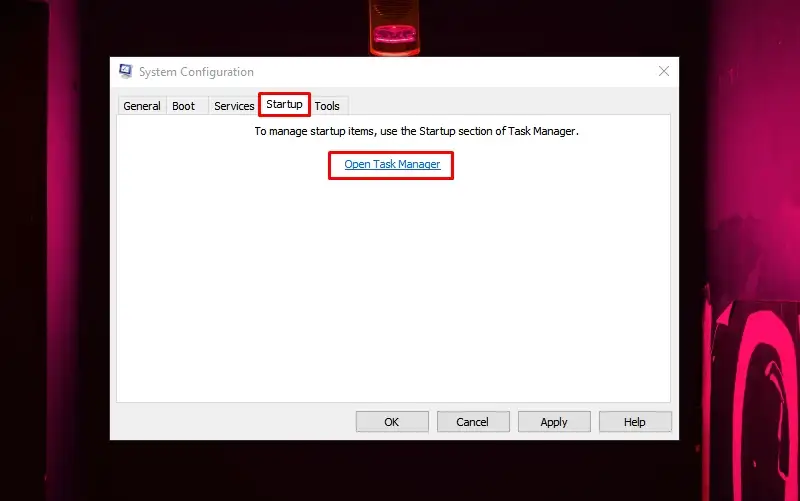
Note: Starting with Windows 8, the “Startup” tab in MSConfig has been moved to Task Manager. Therefore, if you want to manage startup applications, use Task Manager as described in Section 2.
5. Advanced Boot Mechanisms (for Advanced Users)
- Scheduled Tasks: Some software, particularly update or maintenance applications, may run automatically through the Windows Task Scheduler, even if they do not appear in the startup list in Task Manager or Settings. Managing Scheduled Tasks is more complex and requires a higher level of technical knowledge. You can search for “Task Scheduler” in the Start menu to access this tool.
- Registry Editor: Startup items are also stored in the Windows Registry under keys such as HKEY_CURRENT_USER\Software\Microsoft\Windows\CurrentVersion\Run and HKEY_LOCAL_MACHINE\Software\Microsoft\Windows\CurrentVersion\Run. However, editing the Registry requires in-depth knowledge and carries a very high risk if done incorrectly, as it can cause serious system errors. We DO NOT recommend that general users use this method.
Managing startup applications is an important step in maintaining optimal performance for your Windows computer. By carefully following the methods above, you can enjoy a faster, smoother, and more energy-efficient system.
Frequently Asked Questions About Managing Windows Startup Applications
Does disabling an app from starting up affect the app's functionality?
No, disabling an app from starting up only prevents it from running automatically when Windows starts. You can still open and use the app at any time by clicking its icon. The app’s core functionality remains unaffected.
How can you tell which apps are safe to turn off?
Prioritize closing apps that you rarely use or don’t need running immediately (e.g., messaging apps, entertainment apps, and apps with automatic updates). In Task Manager, the “Startup impact” column is also a good guide. Avoid disabling antivirus software, device drivers, or system services if you’re unsure of their functions.
Can I re-enable an app that has been disabled at startup?
Absolutely. Just repeat the steps in Settings or Task Manager and change the app's status from “Disabled” to “Enabled.”.
Why don't some apps appear in the startup list in Settings or Task Manager?
Some apps may launch through other mechanisms, such as the Windows Task Scheduler, or be more deeply embedded in the Registry. For the average user, managing apps through Settings and Task Manager is sufficient. If you suspect an app is running in the background but doesn’t appear in those lists, you can check the Task Scheduler or search for specific information about that app.
Are there any recommended third-party tools for managing startup applications?
Although Windows’ built-in tools (Settings, Task Manager) are very effective, some professional users may turn to third-party tools such as Sysinternals’ Autoruns (Microsoft) to gain a more detailed view of all startup items on the system. However, these tools require advanced technical knowledge and are not recommended for general users due to potential risks.